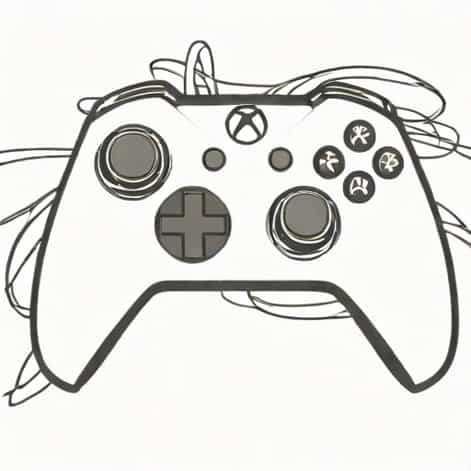
An Xbox controller going haywire can be one of the most frustrating experiences for any gamer. One moment everything feels normal, and the next your character starts moving on its own, buttons activate without being pressed, or menus scroll uncontrollably. This issue can affect casual players and competitive gamers alike, interrupting gameplay and breaking immersion. Understanding why an Xbox controller behaves this way is the first step toward fixing it. From hardware wear to software glitches, there are several common causes behind this problem, and many of them can be addressed with simple troubleshooting steps.
What Does It Mean When an Xbox Controller Goes Haywire
When people describe an Xbox controller going haywire, they usually mean that the controller is sending incorrect or unwanted inputs to the console or PC. These inputs may appear random, but they often follow patterns linked to specific components.
Common Symptoms
The symptoms can vary, but they tend to disrupt gameplay in noticeable ways. Players may find it impossible to control movement or navigate menus properly.
- Analog sticks drifting without being touched
- Buttons registering multiple presses
- Triggers activating on their own
- Menu navigation scrolling endlessly
- Delayed or unresponsive inputs
Analog Stick Drift as a Major Cause
One of the most common reasons an Xbox controller starts acting unpredictably is analog stick drift. This happens when the controller detects movement even when the stick is centered.
Why Stick Drift Happens
Over time, the internal components of the analog stick can wear down. Dust, debris, and general use can affect the sensors responsible for detecting movement. Even a small amount of wear can result in unwanted input.
How Drift Affects Gameplay
Stick drift can cause characters to move forward, rotate the camera, or aim inaccurately. In fast-paced games, this makes precise control nearly impossible and can lead to repeated mistakes.
Button and Trigger Malfunctions
Buttons and triggers can also contribute to an Xbox controller going haywire. These components rely on physical contact and sensors that can degrade over time.
Stuck or Overly Sensitive Buttons
A button may appear fine externally but register multiple inputs internally. Dirt buildup or worn contacts can cause this issue, leading to repeated actions in games.
Trigger Input Problems
Triggers can sometimes register partial presses even when untouched. This often affects racing or shooting games, where triggers control acceleration or firing.
Wireless Interference and Connectivity Issues
Xbox controllers often connect wirelessly, which introduces another layer of potential problems.
Signal Interference
Other wireless devices, such as routers, headsets, or Bluetooth accessories, can interfere with the controller signal. This interference may cause delayed inputs or random actions.
Battery and Power Problems
Low battery levels can cause unstable performance. When power drops, the controller may send inconsistent signals, making it seem like it has a mind of its own.
Software and Firmware Factors
Not all issues are caused by hardware. Software problems can also make an Xbox controller behave unpredictably.
Outdated Firmware
Controllers rely on firmware to communicate correctly with the console or PC. Outdated firmware can lead to compatibility issues, input lag, or erratic behavior.
Game-Specific Bugs
Sometimes the problem appears only in certain games. In these cases, the issue may be related to in-game settings or software bugs rather than the controller itself.
Calibration and Sensitivity Settings
Improper calibration can make a controller feel broken even when the hardware is intact.
Dead Zone Settings
Dead zones define how much movement is required before the controller registers input. If dead zones are too small, even slight imperfections in the analog stick can cause drift.
Adjusting Sensitivity
High sensitivity settings can exaggerate minor input issues. Adjusting these settings can help stabilize control and reduce unwanted movement.
Physical Wear and Environmental Factors
Physical conditions play a big role in controller performance.
Dust and Debris
Dust can enter the controller through small openings around buttons and sticks. Over time, this buildup interferes with internal components.
Impact Damage
Drops or impacts can misalign internal parts. Even if the controller looks fine externally, internal damage can cause unpredictable behavior.
Basic Troubleshooting Steps
Before considering a replacement, there are several steps players can take to troubleshoot an Xbox controller going haywire.
Restart and Reconnect
Power cycling the console and reconnecting the controller can resolve temporary glitches. This refreshes the connection and clears minor software issues.
Update Controller Firmware
Keeping the controller firmware up to date ensures compatibility and stability. Updates often address known bugs and performance issues.
Clean the Controller
Gently cleaning around the analog sticks and buttons can remove dust and debris. Care should be taken to avoid damaging sensitive components.
Testing the Controller on Different Devices
Testing the controller on another console or PC can help identify whether the issue is with the controller or the original system.
Identifying the Source of the Problem
If the controller behaves the same way on multiple devices, the issue is likely hardware-related. If not, the problem may be tied to a specific console or software setup.
Using Diagnostic Tools
Some systems offer built-in tools to test controller inputs. These tools can show whether inputs are being registered incorrectly.
Repair or Replacement Considerations
When troubleshooting does not resolve the issue, players must decide whether to repair or replace the controller.
Repair Options
Professional repair services can fix issues such as stick drift or faulty buttons. This option may be cost-effective for newer controllers.
When Replacement Makes Sense
If the controller is heavily worn or repair costs are high, replacing it may be the better choice. Newer models may also offer improved durability.
Preventing Future Controller Issues
Prevention plays an important role in extending the life of an Xbox controller.
Proper Storage
Storing the controller in a clean, dry place reduces exposure to dust and moisture. Avoid placing heavy objects on top of it.
Regular Maintenance
Occasional cleaning and firmware updates help maintain performance. Being gentle with buttons and sticks also reduces wear.
An Xbox controller going haywire can feel like a serious problem, but in many cases, the cause is manageable with the right approach. Whether the issue stems from analog stick drift, button malfunctions, wireless interference, or software glitches, understanding the root of the problem makes troubleshooting much easier. With proper care, regular maintenance, and timely updates, many controller issues can be prevented or resolved. For gamers, taking a few extra steps to maintain their controller can mean smoother gameplay and fewer frustrating interruptions.